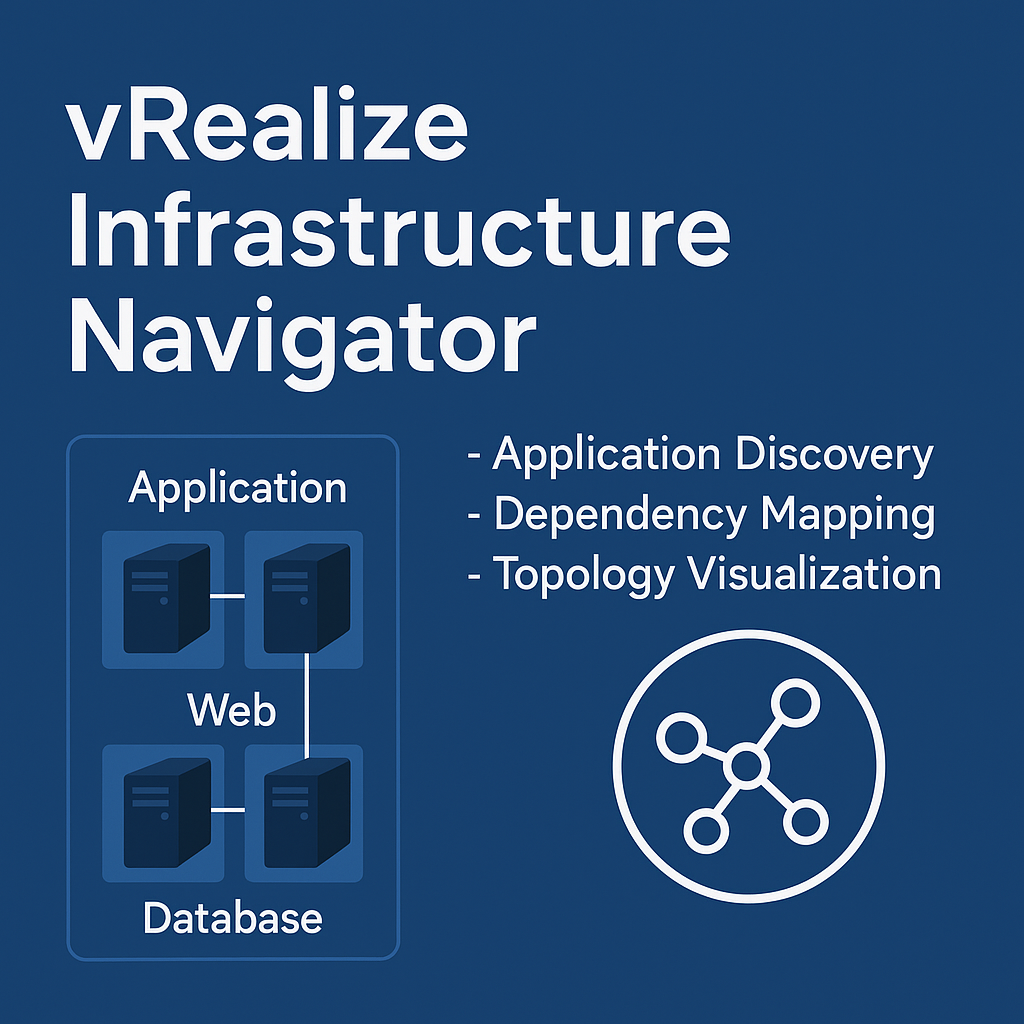
vRealize Infrastructure Navigator (VIN): Simple and Complete Guide
vRealize Infrastructure Navigator (VIN) is a VMware tool that helps you discover applications running inside virtual machines and shows how these applications connect to each other. It works without installing agents and gives you a clear view of application relationships inside a vSphere environment Plangud
Even though VMware has stopped supporting VIN, many people still search for information about how it works and what benefits it provided. This guide explains VIN in simple English so anyone can understand it, even if they are new to VMware tools.
What vRealize Infrastructure Navigator Does
vRealize Infrastructure Navigator helps IT teams by:
-
Finding applications running inside virtual machines
-
Showing how different VMs and applications are connected
-
Helping with planning, troubleshooting, and change management
-
Offering easy maps that display relationships between servers and apps
VIN is built into the vSphere Web Client, so administrators can see application details without switching to another tool.
Why Application Discovery Is Important
In modern IT environments, applications are not simple or isolated. Many apps depend on:
-
Databases
-
Web servers
-
APIs
-
Middleware
-
Other virtual machines
If you do not know how these parts connect, problems can happen during:
-
Migrations
-
System upgrades
-
Disaster recovery tests
-
Security audits
-
Troubleshooting
VIN solved these problems by giving clear visibility into how systems communicate.
How vRealize Infrastructure Navigator Works
VIN works with the help of VMware Tools installed on each virtual machine. It does not need extra agents. It checks the VM’s services, open ports, and communication to understand what applications are running.
Main Components
| Component | What it Does |
|---|---|
| VIN Appliance | The virtual machine that runs the VIN software |
| vCenter Integration | VIN adds new tabs inside the vSphere Web Client |
| VMware Tools | Helps VIN read system information from inside VMs |
| Database | Stores discovered apps and connection details |
How VIN Finds Applications
VIN looks at:
-
Running processes
-
Network ports
-
Traffic between VMs
-
Known application types like web servers and databases
Where VIN Was Commonly Used
VIN was used mostly in:
-
Traditional VMware data centers
-
Virtualized environments with many interdependent apps
-
vRealize Operations setups
Main Features of vRealize Infrastructure Navigator
VIN includes several helpful features that make managing virtual environments easier.
Automatic Application Discovery
VIN discovers applications inside virtual machines without extra software. Here are some apps it can detect:
-
MySQL
-
Oracle
-
MSSQL
-
Apache
-
IIS
-
Tomcat
-
JBoss
-
Custom TCP-based apps
Dependency Mapping
VIN shows which applications depend on each other. This helps you answer questions like:
-
Which VMs connect to this database?
-
If I reboot this VM, what other services will stop working?
Live Topology Maps
VIN displays visual maps that show:
-
Layers of an application
-
Data flows between servers
-
Connection lines based on real network traffic
Change Tracking
VIN notices when something changes, such as:
-
New applications detected
-
Old services removed
-
New connections created
Integration with VMware Tools
VIN works smoothly with:
| VMware Product | How VIN Helps |
|---|---|
| vCenter | Shows application info directly in the Web Client |
| vRealize Operations | Adds application-level views and dashboards |
| vRealize Automation | Helps automate workflows with app insights |
| Site Recovery Manager | Improves DR plans with dependency maps |
Security and RBAC
VIN respects vCenter roles. This lets you:
-
Control who can see app maps
-
Restrict access to sensitive systems
-
Follow least-privilege security models
How Businesses Benefit from Using VIN
VIN helps in many real-world situations. Here are the most common benefits.
Better Migration Planning
When moving apps between data centers or clouds, VIN helps by showing:
-
What VMs must move together
-
What services depend on each other
-
Hidden communication paths
Improved Disaster Recovery
VIN helps build reliable DR plans by showing:
-
Which servers must restart together
-
Application groups and dependencies
-
Priority order for recovery steps
Safer Change Management
Before patching a server or restarting a VM, VIN helps answer:
-
Which applications will be affected?
-
Does this VM support a critical service?
-
Are there backups or redundant systems?
Faster Troubleshooting
VIN helps diagnose issues by showing:
-
What changed before a failure
-
What systems are connected to a failing VM
-
Whether a dependency issue caused the outage
Stronger Security and Compliance
VIN helps with audits and compliance because it shows:
-
Hidden services
-
Unauthorized connections
-
Actual server relationships
-
Up-to-date information for CMDB systems
Better Capacity Planning
VIN shows how applications use resources together, helping with:
-
Right-sizing VMs
-
Placing workloads
-
Improving performance
Installing and Setting Up VIN
Even though VIN is retired, here is how installation worked.
Requirements
You need:
-
Working vCenter
-
vSphere Web Client
-
DNS entries for VIN appliance
-
VMware Tools installed on VMs
-
Required firewall ports open
Steps to Deploy VIN
-
Deploy the OVA file to VMware vSphere
-
Set up IP address and network details
-
Power on the appliance
-
Open the setup page in a web browser
-
Register VIN with vCenter
-
Log in through vSphere Web Client
Permissions Setup
VIN needs a service account with:
-
Read-only access
-
VIN discovery permissions
-
Permission to view dependency maps
Setup Best Practices
-
Keep VMware Tools updated
-
Ensure good DNS resolution
-
Protect VIN appliance with strong credentials
-
Keep discovery scope well defined
How to Use VIN in Daily Work
VIN becomes available inside the vSphere Web Client after installation.
Where to Find VIN in vSphere
VIN usually appears in:
-
Application Services tab
-
Dependency Map tab
-
VM details pages
Using Dependency Maps
With maps, you can:
-
Expand or collapse service layers
-
Follow communication lines
-
Export diagrams for planning
-
Group VMs based on function
Tagging and Grouping
VIN lets you create:
-
Application groups
-
Tags for VMs
-
Labels for discovered apps
These help keep the environment organized.
Managing Discovery Scope
Admins can control:
-
Which VMs are scanned
-
What networks are included
-
Sensitivity of service detection
Security, Governance, and Compliance
VIN supports good security practices.
Least Privilege Access
Only trusted users should view application maps to protect sensitive information.
Control Who Sees What
You can limit:
-
Access to dependency diagrams
-
Permissions to view internal app details
-
The ability to change VIN settings
Audit and Logging Support
VIN logs:
-
User activity
-
Configuration changes
-
Discovery events
This helps with:
-
Compliance reports
-
Security reviews
-
Internal audits
Troubleshooting Common Issues
VIN users sometimes face problems. Here are common ones and their causes.
VIN Registration Issues
Usually happen because of:
-
Wrong vCenter credentials
-
DNS problems
-
Certificate errors
Applications Not Showing
Possible reasons:
-
Outdated VMware Tools
-
Firewall blocking traffic
-
Guest OS settings limiting visibility
-
Unsupported custom apps
Permission Problems
Often caused by:
-
Wrong user roles
-
Missing RBAC privileges
Network and Port Problems
VIN needs proper ports to communicate with:
-
vCenter
-
VMs
-
Other VMware products
Performance Issues
VIN may not work well when:
-
There are thousands of VMs
-
The environment changes too fast
-
Apps are container-based or cloud-native
Limitations of vRealize Infrastructure Navigator
VIN has several limits that became more serious as IT environments evolved.
Limited Application Support
VIN supports many common apps but struggles with:
-
Modern microservices
-
Cloud-native workloads
-
Container-based platforms like Kubernetes
Depends on VMware Tools
If VMware Tools is missing or old, VIN cannot gather full data.
Scaling Problems
VIN becomes less effective in:
-
Very large data centers
-
Highly dynamic environments
Retired Product
VIN is no longer supported. This means:
-
No updates
-
No security patches
-
Not compatible with newer VMware versions
Modern Alternatives to VIN
VMware replaced VIN with more advanced tools that offer better discovery and analytics.
VMware Recommended Tools
| Replacement Tool | What It Does |
|---|---|
| Aria Operations for Applications | Deep app monitoring, tracing, and dependency mapping |
| Aria Operations (vROps) | App-aware analytics and dashboards |
| Aria Network Insight (vRNI) | Network flow and app dependency insight |
Third-Party Alternatives
Many companies now use tools like:
-
Dynatrace
-
Datadog
-
New Relic
-
ScienceLogic
-
SolarWinds AppStack
These tools provide deeper insights for cloud and hybrid environments.
Simple Migration Plan
Here is an easy approach for moving away from VIN:
-
Export VIN maps or save screenshots
-
List all key applications and dependencies
-
Install a modern discovery tool
-
Compare and validate new maps
-
Update DR plans and CMDB
-
Remove or retire vRealize Infrastructure Navigator appliance
Real Examples of VIN in Use
Migration Example
Table below shows how vRealize Infrastructure Navigator maps a simple 3-tier app:
| VM | Application | Depends On |
|---|---|---|
| web01 | Apache | app01, db01 |
| app01 | Tomcat | db01 |
| db01 | MySQL | None |
This map helps ensure all related VMs move together.
Disaster Recovery Example
vRealize Infrastructure Navigator helps identify:
-
What services are critical
-
What servers must recover together
-
Risks of missing dependencies
Change Management Example
Before rebooting a VM, admins use vRealize Infrastructure Navigator to check:
-
What apps will stop working
-
Whether there are backup servers
-
Whether customers will be affected
Best Practices
-
Keep VMware Tools current
-
Review maps regularly
-
Limit access to dependency data
-
Update documentation and CMDB
-
Capture maps before migrations
FAQs
What is vRealize Infrastructure Navigator?
vRealize Infrastructure Navigator is a VMware tool that discovers applications running inside virtual machines and shows how these applications connect to each other. It helps IT teams understand relationships between servers, services, and workloads inside a vSphere environment.
How does vRealize Infrastructure Navigator work?
It works by using VMware Tools to read information from inside virtual machines. It checks processes, network ports, and traffic patterns to identify applications and map their dependencies. It does not require any extra software or agents.
Why is vRealize Infrastructure Navigator useful?
It is useful because it gives clear visibility into how apps communicate. This helps during migrations, disaster recovery planning, troubleshooting, performance tuning, and security audits. It also reduces risk when making system changes.
Is vRealize Infrastructure Navigator still supported?
No. VMware officially ended support for vRealize Infrastructure Navigator in 2017. It is now considered a legacy tool and does not work with newer versions of vSphere or vCenter.
What are the main features of v Realize Infrastructure Navigator?
Some key features include automatic application discovery, dependency mapping, topology diagrams, change tracking, and integration with VMware tools like vRealize Operations and Site Recovery Manager.
Does vRealize Infrastructure Navigator require agents?
No. It is completely agentless. It uses VMware Tools already installed on virtual machines, which makes setup easier and reduces overhead.
Conclusion
vRealize Infrastructure Navigator was a helpful and important tool for understanding how applications connect and work inside virtual machines. It gave IT teams clear visibility, simple dependency maps, and useful insights that supported better planning, stronger disaster recovery, safer changes, and easier troubleshooting. Even though vRealize Infrastructure Navigator is now retired, the ideas behind it are still valuable for every modern data center. Today’s environments depend on accurate application discovery and connection mapping, especially when dealing with cloud, hybrid systems, and complex workloads. For this reason, using modern VMware tools and advanced third-party platforms is the best way to continue the work that VIN once did. With the right tools and good visibility, organizations can build stable, secure, and well-planned IT systems that are prepared for future growth and change